Template Designer Overview
The template designer is a visual, drag-and-drop interface for designing PDF templates. What you see on the canvas is exactly what your generated PDFs will look like.
Editor Layout
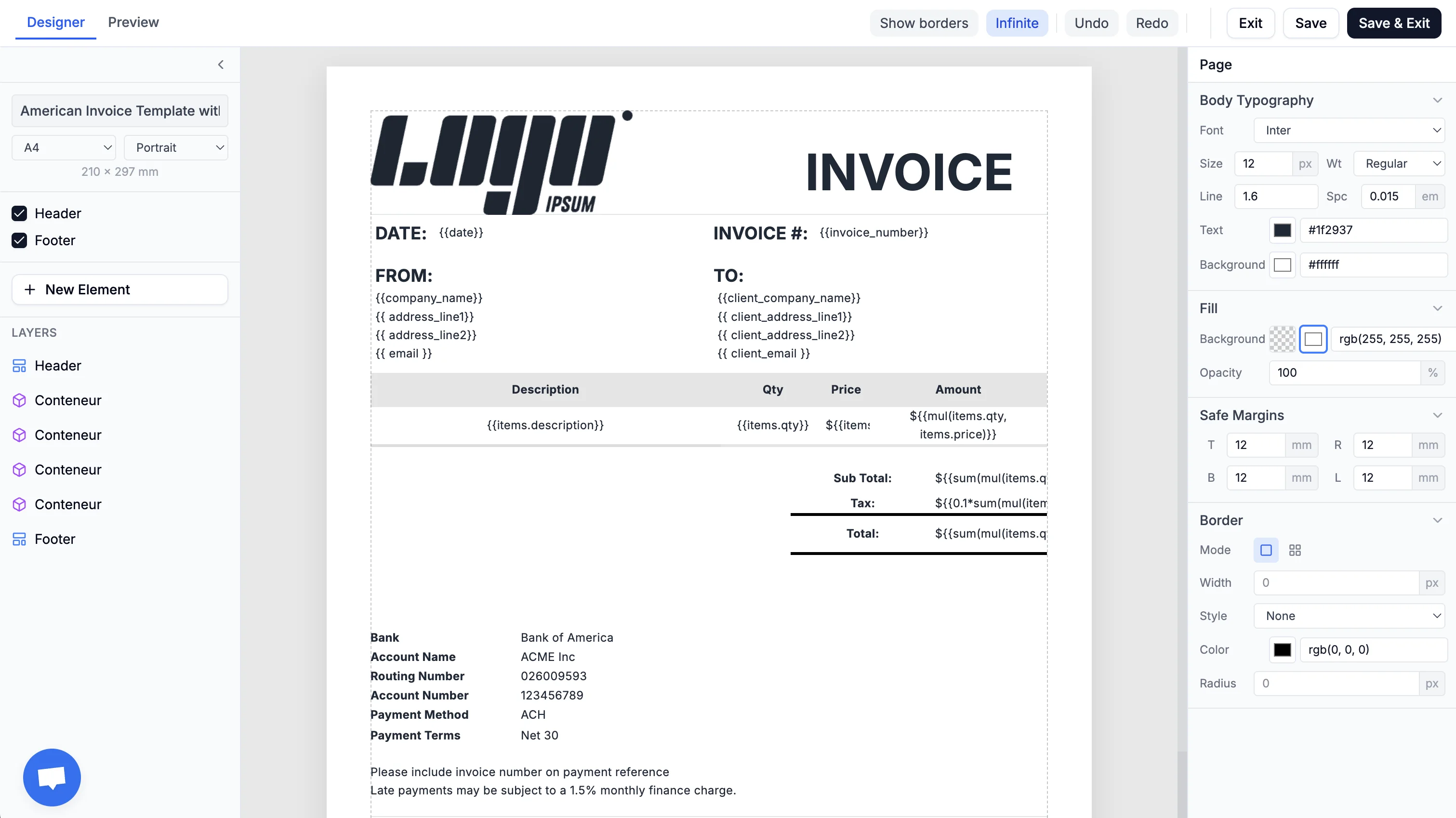
The editor has two modes accessible from the top bar: Designer for building your template, and Preview for seeing the final result. The top bar also contains toolbar actions like Show borders, Undo, Redo, and Save.
The Designer view is organized into three main areas:
1. Left Panel
The left panel contains your template settings and element management:
- Template Info - Set your template name, page format (A4, Letter, etc.), and orientation (Portrait or Landscape)
- Section Toggles - Enable or disable the Header and Footer zones
- Layers - View and manage all elements in your template as a hierarchical list
- Add Element - Button to add new elements to your template
You can collapse this panel by clicking the arrow icon to give more space to the canvas.
2. Canvas (Center)
The canvas is your main editing area where you design your template:
- Displays a visual representation of your PDF page
- Drag elements to position them
- Click an element to select it
- Drag the corners or edges of selected elements to resize them
- The canvas shows your page at actual proportions
3. Right Panel
The right panel displays properties for the currently selected element:
- Dimensions - Width, height, and position
- Typography - Font, size, weight, color, and alignment (for text elements)
- Fill - Background color and opacity
- Border - Width, style, color, and corner radius
- Padding - Inner spacing
The options shown change based on what type of element you have selected. You can collapse this panel when not needed.
Preview Mode
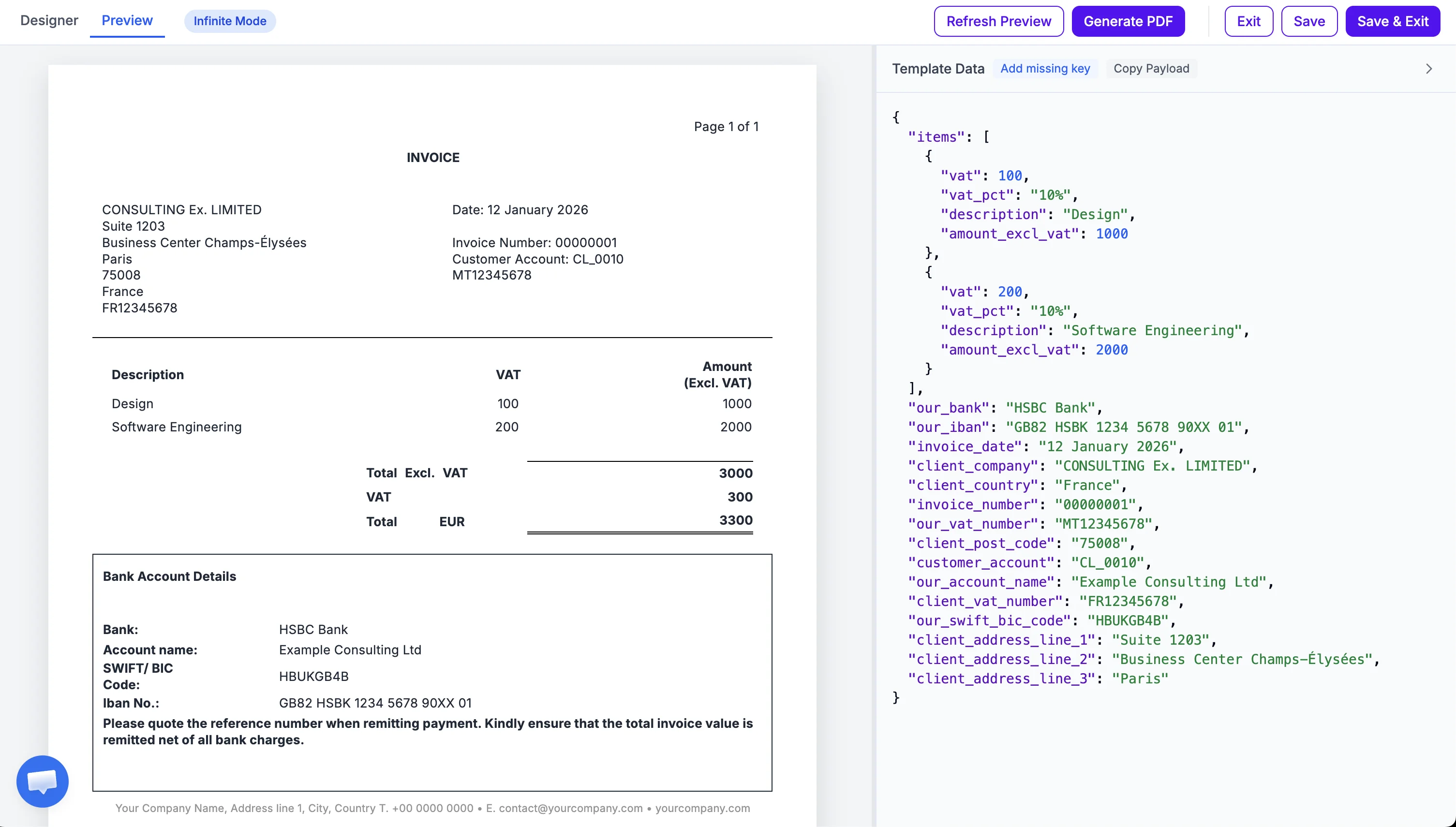
Switch to Preview mode by clicking the Preview tab in the top bar. This lets you see the final rendered PDF with your data applied.
1. PDF Preview
The left side displays the fully rendered PDF with all your template variables replaced by actual data. Use Refresh Preview to update after changes, or Generate PDF to download the result.
2. Template Data
The right panel shows the JSON data used to populate your template. You can edit the data directly to test different values. Use Add missing key to auto-generate placeholders for any variables in your template.
Basic Workflow
Here’s a typical workflow for creating a template:
- Set page format - Choose your paper size (A4, Letter, etc.) and orientation in the left panel
- Add header/footer - Toggle these on if you need repeating content at the top or bottom of each page
- Add sections - Add sections to group elements together. Those are very important for layout and readability.
- Add elements - Click “Add element” and choose Text, Image, Table, or Section
- Position elements - Drag elements to arrange them on the canvas
- Style elements - Select an element and use the right panel to customize its appearance
- Add variables - Insert placeholders like
{{customer_name}}in text elements for dynamic content - Save - Your template is automatically saved as you work
Next Steps
- Setup Page Settings - Configure page format, orientation, margins, and default typography
- Sections - Structure your template with sections
- Header & Footer - Add repeating content to every page