Get Started in 5 Minutes
When you create your account, a Welcome template is automatically added to your dashboard so you can start experimenting right away. You can also browse our library of ready-made templates — invoices, packing slips, reports, and more — and duplicate any of them as a starting point for your own design.
Templates can run in two modes:
-
Fixed mode produces a single fixed-size page. Use Fixed mode for documents with a predictable layout like certificates or letters that will best be designed on a single page. If you need to add more pages to a fixed PDF, you can create another Fixed template and combine them.
-
Infinite mode lets the page grow vertically to fit all your content in a single continuous page. At generation time, the page will be automatically split into multiple pages if the content is too long. Use Infinite mode when the content length varies, such as invoices or reports with dynamic lists.
Design a Template
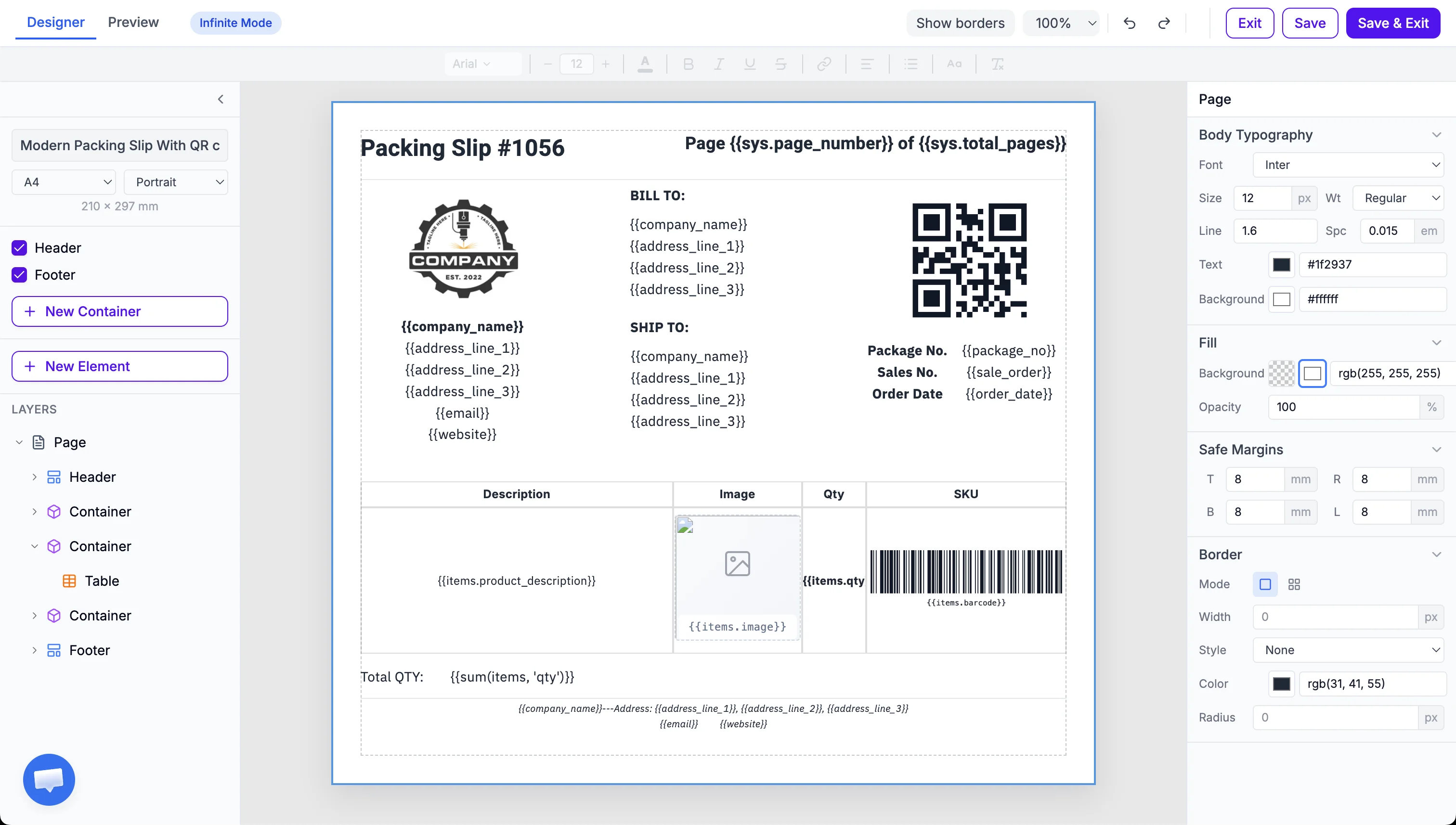
Let’s dive directly into the editor and how to design a template.
-
First set a name for your template and select the page format and orientation.
-
Then optionally add a header and footer to your template. Those will repeat on every page.
-
Setup pages margins (limiting the content from the edges of the page) and background color.
-
Setup default font, size, weight, color, alignment.
-
Add one or more containers to your template. Containers are full-width sections that stack vertically and are essential for structuring your layout:
- Grouping — Content inside a container stays together across page breaks.
- Dynamic content — Containers can hold expanding elements like auto-growing tables or variable-length text. Tables will automatically break across pages. Expending tables must be single inside a container.
-
Add a new element like a text, image, table etc.
-
Preview your template by clicking the “Preview” button in the top right corner of the dashboard (see section below).
Add Dynamic Variables
Variables are placeholders for dynamic data that will be replaced with actual values when you generate your PDF. You can use variables in text, images, QR codes, barcodes, shapes and tables. See the Data Binding guide for more details.
Text
Text elements are used for labels, headings, paragraphs, and any written content.
We use the syntax {{variable_name}} to display dynamic data in your PDFs.
Image, QR Code, Barcode, Shape
Image, QR Code, Barcode, Shape elements are used to display images, QR codes, barcodes, shapes in your PDFs.
We use the same syntax {{variable_name}} to display dynamic data in your images, QR codes, barcodes, shapes but this time the content need to be set in content field in the right side panel.

Preview your template
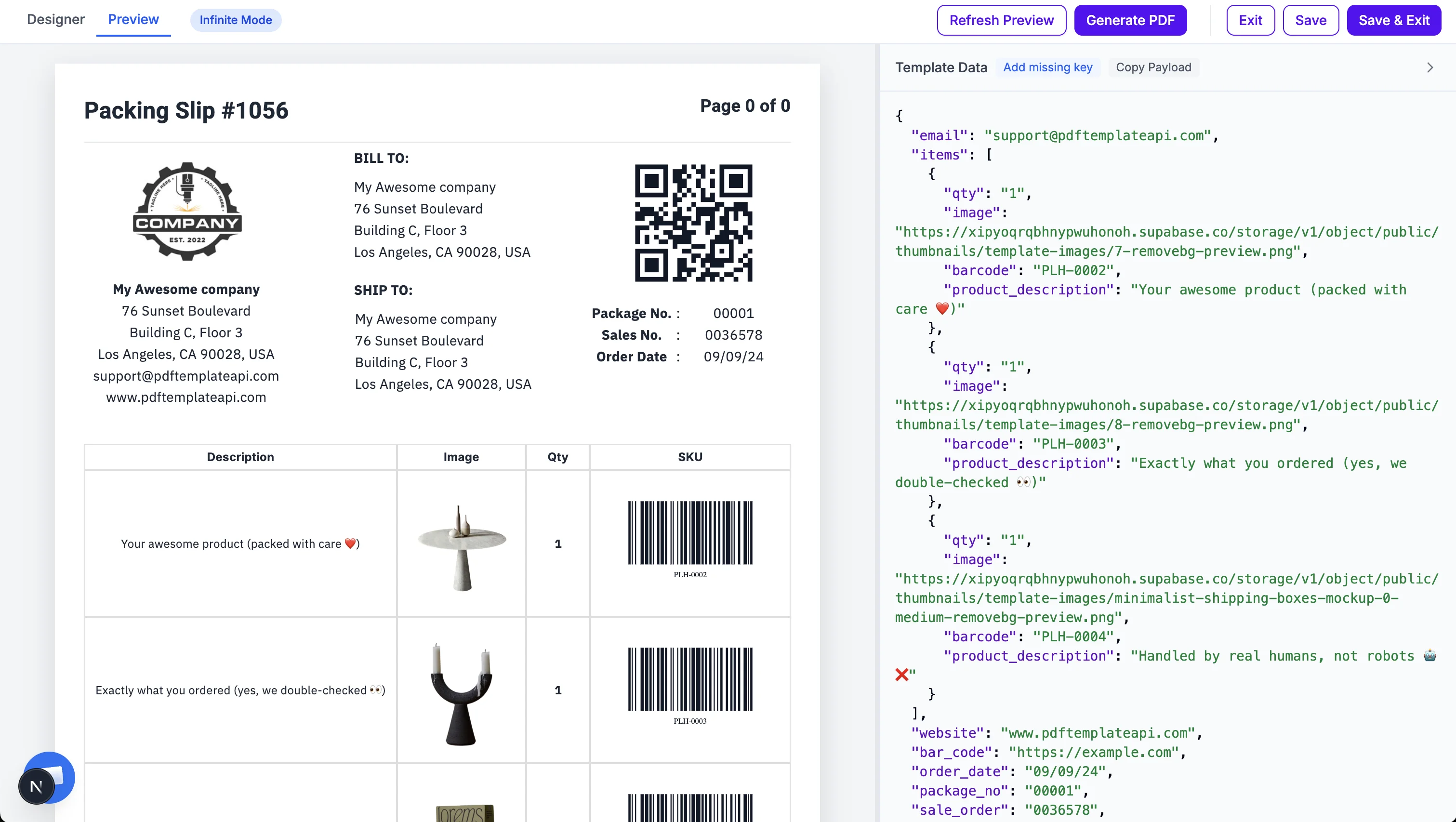
Once in the preview tab, you can see the rendered PDF with your data applied. The view is refreshed automatically every 2 seconds.
First you must add some testing data for {{variables}} you created in the template in the right panel.
It will be used to preview the template with your data in the left panel.
-
Show how it works for
{{email}}variable. -
Show how it works for a list of variables. Items is a list of objects with 3 objects:
qty,image,barcodeandproduct_description. The table is automatically generated based on the list of items.
QRcode and barcode are generated from the {{item.qrcode}} and {{item.barcode}} variables.
Generate PDFbutton can be used to generate a real PDF with your data.
Get Your API Key and try the API
You can get your API key in the API key section of your dashboard.
You can also directly get a CURL example to generate a PDF with your template and data in the My Templates page under the “API” button.
Prefer a visual tool? Fork our Postman collection to test all endpoints with pre-configured requests and example payloads. You can also browse our public Postman profile .
