n8n
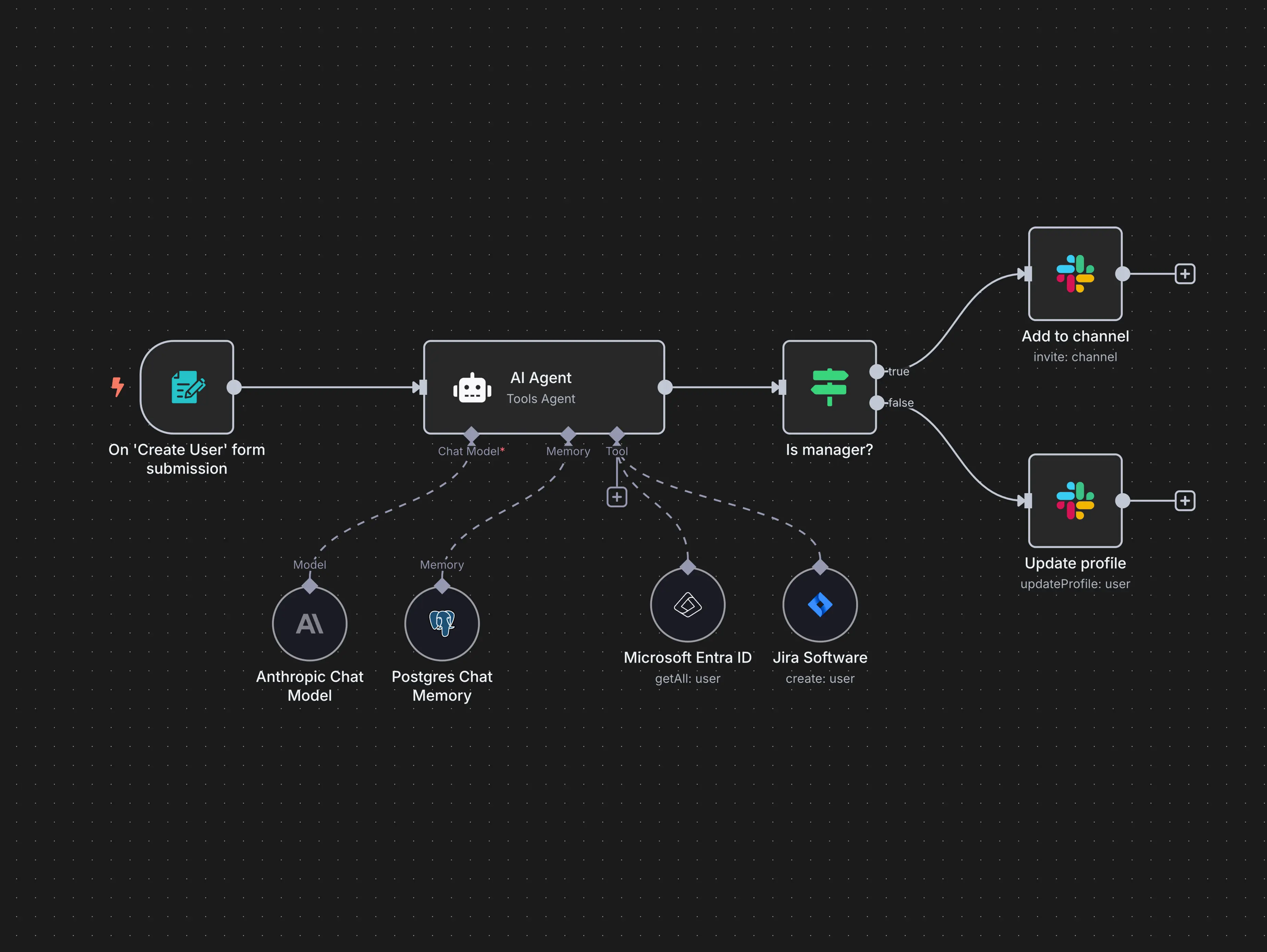
n8n is a free and open-source workflow automation platform.
It lets you build workflows using hundreds of integrations with a simple drag-and-drop interface:
Community node
There is an official TemplateFox node available for n8n: n8n-nodes-templatefox.
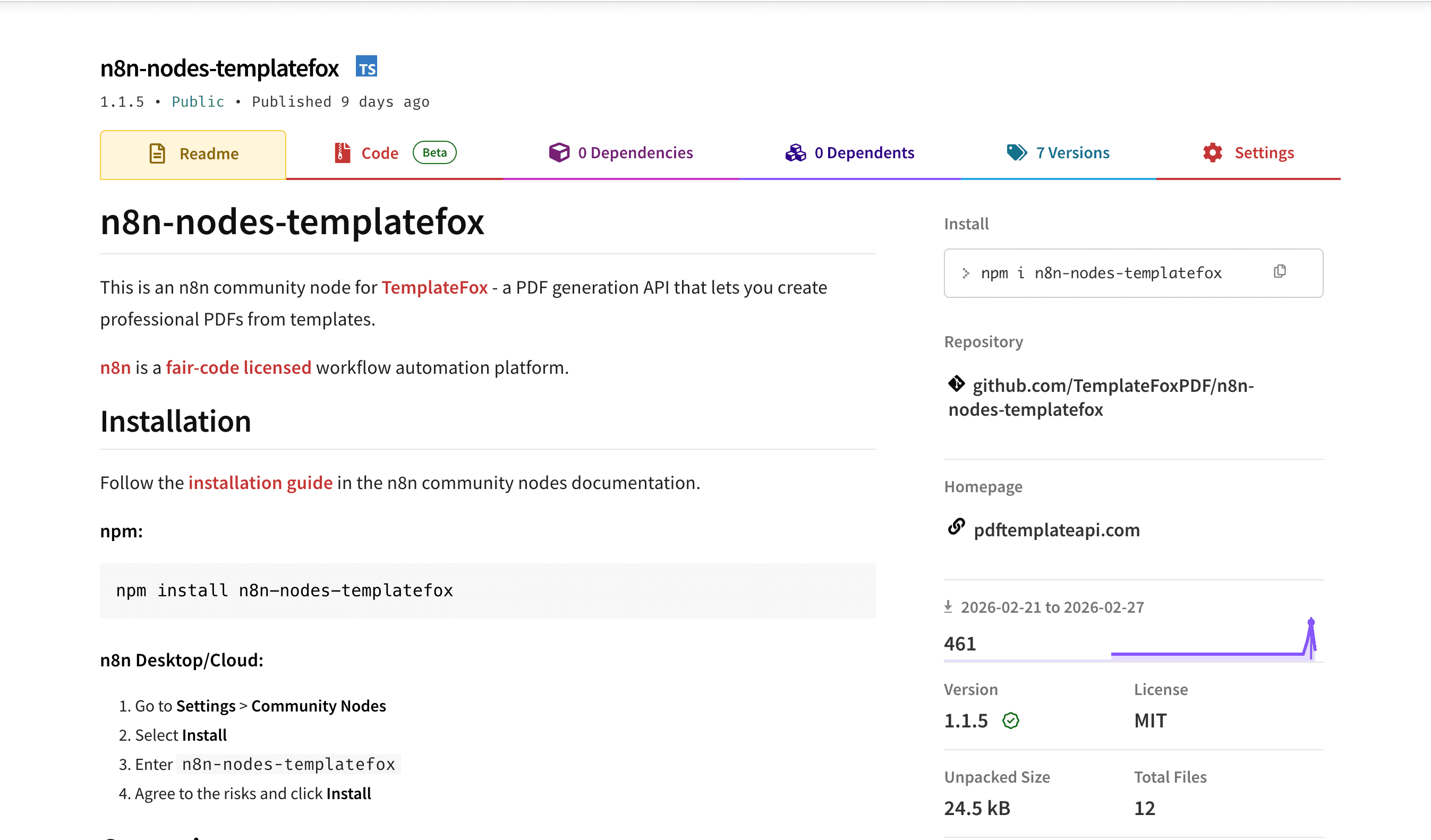
You can also find it in the n8n integrations directory .
Installation
n8n Desktop / Cloud
- Go to Settings > Community Nodes
- Select Install
- Enter
n8n-nodes-templatefox - Agree to the risks and click Install
Docker
Add the package to your N8N_CUSTOM_EXTENSIONS environment variable:
N8N_CUSTOM_EXTENSIONS="n8n-nodes-templatefox"Setup
- Get your API key from your Dashboard
- In n8n, go to Credentials > Add Credential > TemplateFox API and paste your key
- Add the TemplateFox node to your workflow
Node configuration
Data input modes
The node supports two ways to pass data to your template:
Template Fields — The node fetches your template’s variables and displays them as individual fields. Map values from previous nodes directly.
JSON — Pass template data as a raw JSON object. Recommended for templates with arrays or nested data (like invoice line items).
Options
| Option | Description |
|---|---|
| Filename | Custom filename for the PDF (without .pdf extension) |
| Expiration | How long the PDF URL stays valid (default: 24 hours) |
Output
| Field | Description |
|---|---|
url | Signed URL to download the PDF |
filename | The PDF filename |
credits_remaining | Credits left in your plan |
expires_in | Seconds until the URL expires |
AI Agent support
The TemplateFox node is compatible with n8n’s AI Agent nodes (usableAsTool: true). This means you can attach it as a tool to any AI Agent, and the agent will decide when and how to generate PDFs based on the conversation or input data.
How it works
- Add an AI Agent node to your workflow (e.g. OpenAI, Anthropic)
- Attach the TemplateFox node as a tool
- The agent receives the template fields as its tool schema — it knows what data is needed
- When the agent decides a PDF should be generated, it calls the TemplateFox tool with the right parameters
The agent handles the reasoning: extracting data from unstructured text, picking the right values for each field, and triggering generation at the right moment.
Example: AI-powered document processing
An agent receives an email with order details in free text. It extracts the customer name, items, quantities, and totals — then generates an invoice PDF using your template. No manual parsing, no rigid field mapping.
This works for any document type: invoices from email threads, certificates from form submissions, shipping labels from order webhooks, receipts from payment events.
Workflow examples
Batch PDF generation
Process multiple records from a spreadsheet, database, or API response. Connect a Google Sheets or HTTP Request node to TemplateFox — each row becomes a PDF.
Webhook-triggered documents
Receive a webhook from your app (Stripe payment, form submission, order placed), then generate and deliver a PDF automatically. Chain with Gmail, Slack, or S3 nodes to send or store the result.
Scheduled reports
Use a Schedule Trigger to generate PDFs on a recurring basis — daily reports, weekly summaries, monthly invoices. Combine with database queries to pull fresh data each run.
Next steps
- Get Started in 5 Minutes — Create your first template
- Data Binding — Learn how to pass dynamic data
- API Reference — Full endpoint documentation