The problem
Every time someone pays you, they expect a receipt. For SaaS subscriptions, e-commerce orders, or freelance payments, customers need proof of purchase for their records, expense reports, or taxes.
Payment platforms like Stripe send basic email confirmations, but they're generic and don't reflect your brand. Manually creating receipts means copying transaction details, formatting a document, exporting to PDF, and emailing it. For 20 transactions a day, that's tedious and error-prone.
The solution: Create a branded receipt template once in TemplateFox, connect it to your payment platform via Zapier, and let it auto-generate and email receipts for every payment.
Receipt vs Invoice: What's the difference?
They're often confused, but serve different purposes in the payment flow:
📤Invoice (Before Payment)
- "You owe us $500"
- Request for payment
- May include payment terms (Net 30)
- Customer hasn't paid yet
📥Receipt (After Payment)
- "You paid $500"
- Confirmation of transaction
- Shows payment method used
- Proof of purchase for records
Need invoices instead? See our invoice automation guide for sending payment requests before customers pay.
Create your receipt template
1.1 — Choose a template
Start with one of our pre-built receipt templates or create your own:
- Go to Templates
- Filter by Receipt category
- Choose a template that matches your use case
- Click Use Template to add it to your dashboard
Available receipt templates
Tip: For Stripe/PayPal automation, use the Payment Confirmation template — it's designed for online payments with QR verification.
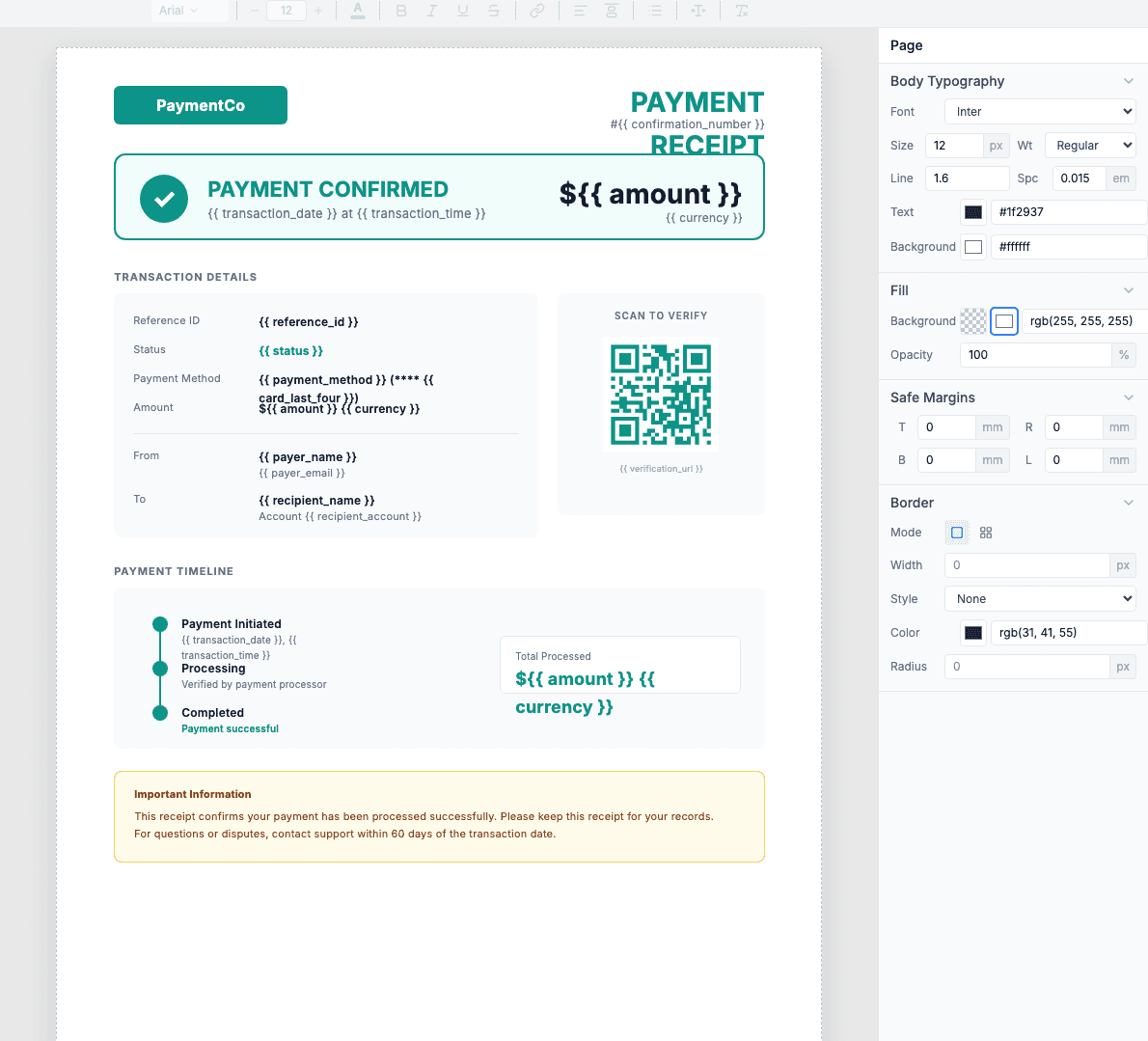
1.2 — Understand receipt fields
A receipt has different fields than an invoice. Since the payment already happened, you're confirming the transaction, not requesting money.
Hardcode once (your business)
company_name— Your business namecompany_address— Your addresscompany_email— Support emailcompany_phone— Contact number
Edit these directly in the template — they stay the same for every receipt.
Dynamic from Zapier (per transaction)
confirmation_number— Unique receipt IDtransaction_date— When paidpayer_name— Who paidpayer_email— Their emailamount— Amount paidpayment_method— Card/PayPal
Map these from your payment platform in Zapier.
Receipt-specific fields (vs invoices)
Receipts include payment confirmation details that invoices don't have:
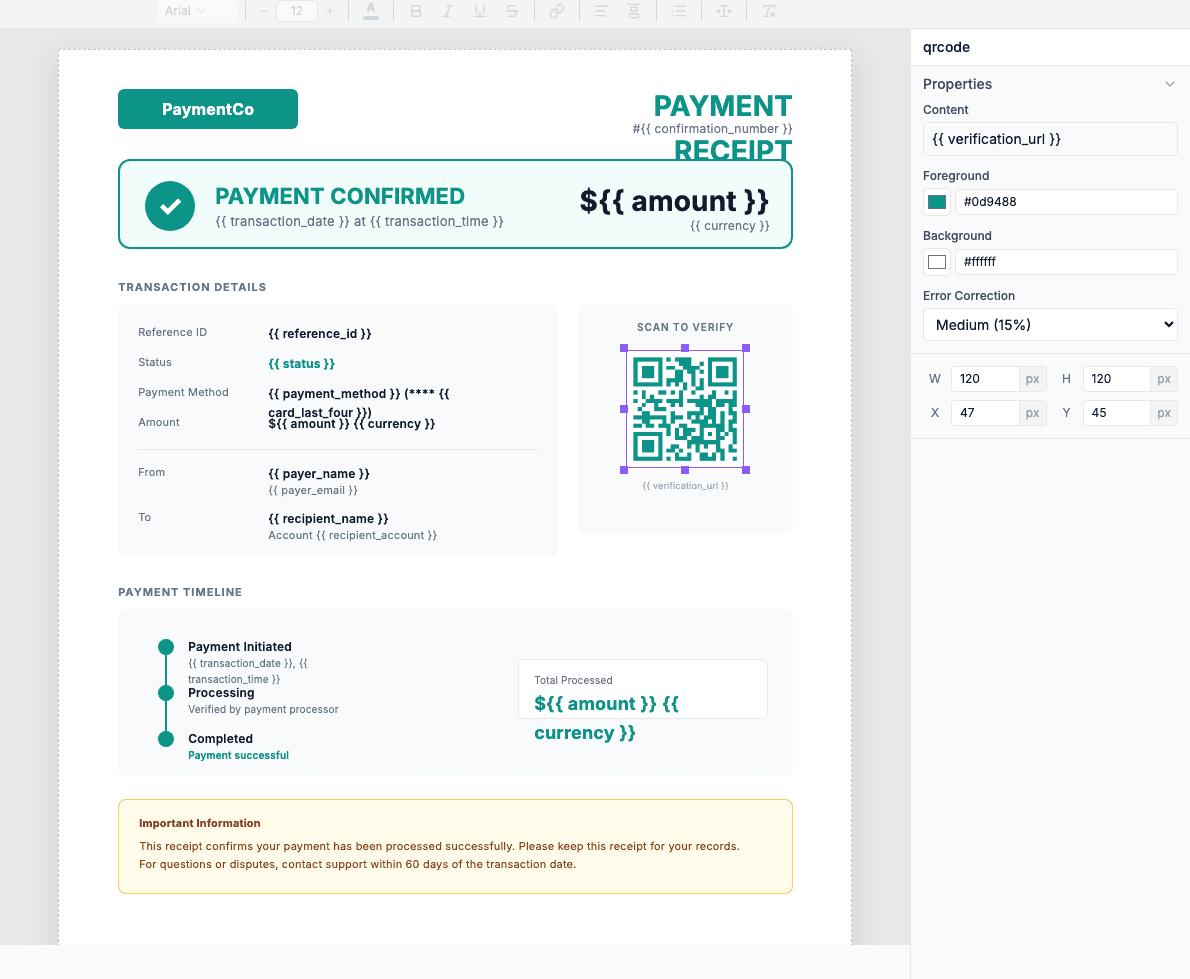
Optional: QR code for verification
Add a QR code that links to a verification page. Customers can scan it to confirm the receipt is authentic — useful for expense reports and fraud prevention.
Learn more: Data binding · QR codes · Expressions
1.3 — Test with the Preview tab
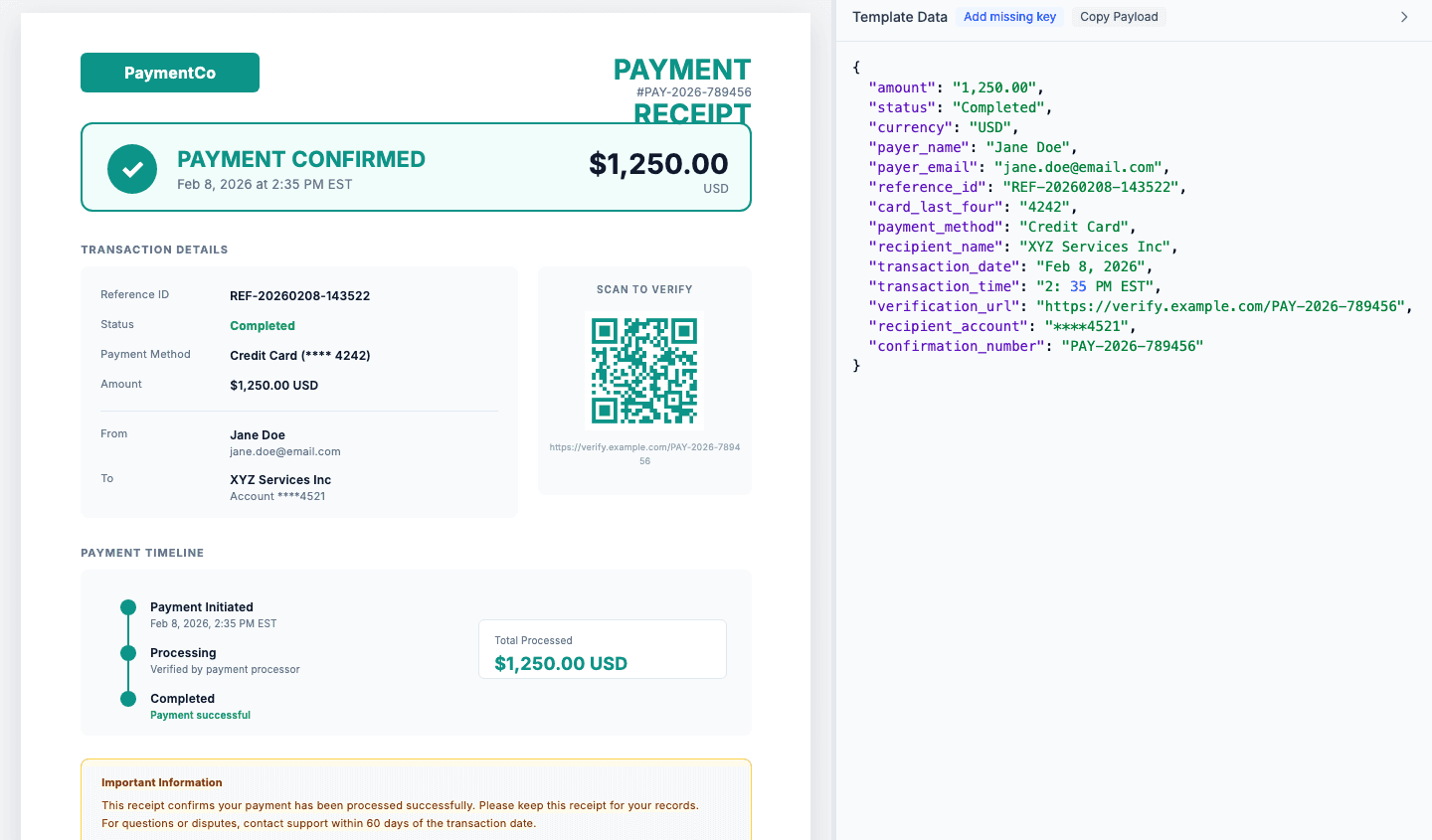
Test your template with sample data before connecting to Zapier. The JSON panel lets you see exactly how your receipt will look with real transaction data.
Open the Preview tab
Switch from Design to Preview mode in the editor.
Edit the JSON data
Add test values for each field. The preview updates in real-time.
Copy the payload structure
Use Copy Payload — this is the exact format you'll send from Zapier.
Tip: Test with realistic data — use actual amounts, a real date format, and the payment method format your platform uses (e.g., "Visa").
View example JSON payload for Stripe
Connect Stripe with Zapier
We'll use Stripe as the example since it's the most popular payment platform. The process is similar for PayPal, Square, and others — we'll cover those below.
2.1 — Set up the trigger
Choose the right trigger based on your use case:
Payment Intent Succeeded
Best for one-time payments, product purchases, service fees
Invoice Payment Succeeded
Best for subscriptions, recurring billing (includes invoice details)
New Charge
Legacy option — use Payment Intent for new integrations
- Go to zapier.com and create a new Zap
- Search for Stripe
- Select Payment Intent Succeeded
- Connect your Stripe account
- Test the trigger with a recent payment
Testing with Stripe Test Mode
Connect Zapier using your test secret key (starts with sk_test_). Create a test payment with card 4242 4242 4242 4242.
2.2 — Map Stripe fields to your template
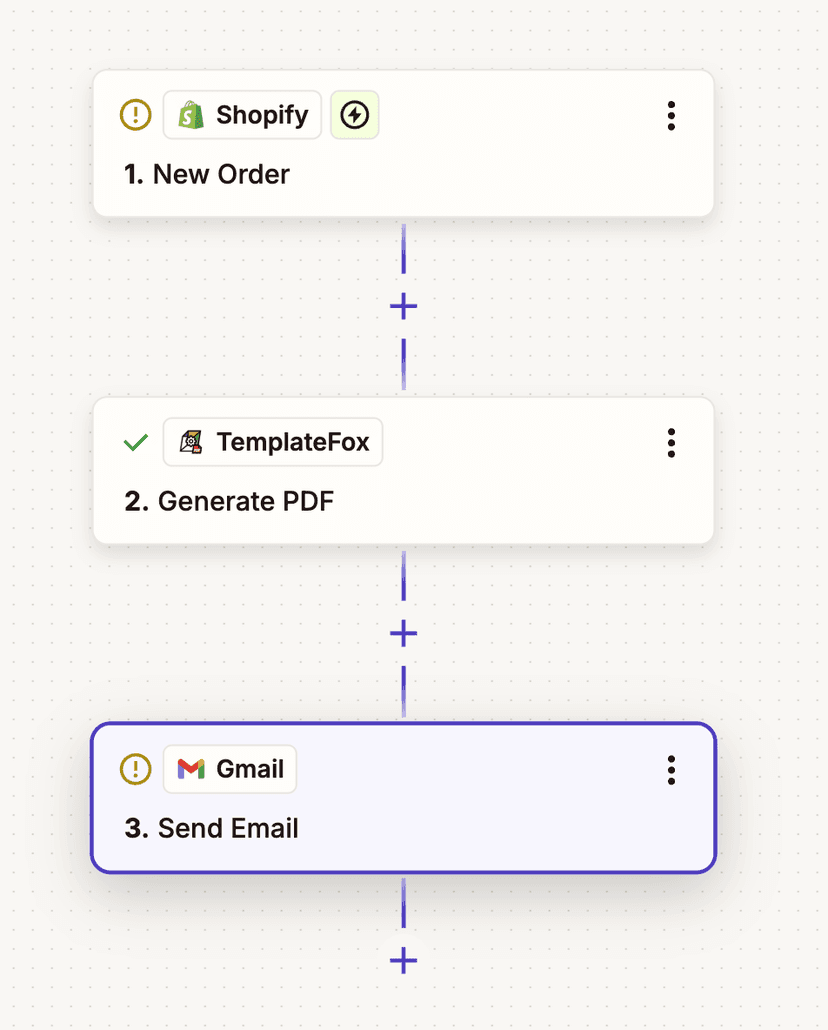
Now connect the Stripe data to your receipt template. Add a TemplateFox action step:
- Add an Action step
- Search for "TemplateFox"
- Select "Generate PDF"
- Connect your TemplateFox account with your API key
- Select your receipt template
- Map the fields using Stripe data
Common Stripe field mappings
| Template Field | Stripe Field | Notes |
|---|---|---|
confirmation_number | ID | Payment Intent ID (pi_xxx) |
transaction_date | Created | Use Formatter to format date |
payer_email | Receipt Email | Customer's email address |
amount | Amount | ⚠️ Divide by 100 (cents → dollars) |
card_last_four | Charges Data Card Last4 | Last 4 digits of card |
reference_id | ID | Same as confirmation_number |
payment_method | Charges Data Card Brand | Visa, Mastercard, etc. |
Converting Stripe amounts from cents
Stripe sends amounts in cents (4999 = $49.99). Add a Formatter step before TemplateFox:
- Add Formatter by Zapier action
- Select Numbers → Spreadsheet-Style Formula
- Formula:
[Amount] / 100 - Use this formatted amount in TemplateFox
Tip: The template has separate fields for payment_method (card brand) and card_last_four (last 4 digits), making it easy to display them together.
2.3 — Send to customer
Automatically email the receipt to your customer:
- Add another Action step
- Choose Gmail, Outlook, or SMTP by Zapier
- Select "Send Email"
- Set the To field to Stripe's
Receipt Email - Subject:
Receipt for your payment - [Description] - Attach the PDF URL from the TemplateFox action
- Turn on your Zap
Suggested email template
Subject: Receipt for your payment - [Product Name]
Hi [Customer Name],
Thank you for your payment of [Amount].
Please find your receipt attached to this email.
If you have any questions, reply to this email or contact us at [support email].
Best,
[Your Company]
Done! Every time a payment succeeds in Stripe, your customer automatically gets a branded PDF receipt in their inbox.
Other payment platforms
The same workflow works with any payment platform that has a Zapier integration. Here are the triggers and key fields for popular platforms:
PayPal
Trigger: Successful Sale
Key fields:
- •
Transaction ID→ receipt number - •
Payer Email→ customer email - •
Gross Amount→ amount (already in dollars) - •
Payment Date→ payment date
Square
Trigger: Payment Completed
Key fields:
- •
Payment ID→ receipt number - •
Receipt URL→ verification link - •
Total Money Amount→ amount (in cents) - •
Card Details Last4→ card last 4
Gumroad
Trigger: New Sale
Key fields:
- •
Sale ID→ receipt number - •
Email→ customer email - •
Price→ amount (in dollars) - •
Product Name→ description
LemonSqueezy
Trigger: New Order
Key fields:
- •
Order ID→ receipt number - •
User Email→ customer email - •
Total→ amount (in dollars) - •
Product Name→ description
All supported payment platforms