The problem
Every product in your warehouse needs a barcode. New shipment comes in with 50 items? Someone has to manually create 50 labels — open design software, type in each SKU, generate each barcode, print them one by one.
Or worse, you're copy-pasting product codes from a spreadsheet into a barcode generator website, downloading each image, arranging them in a document, and hoping you didn't make a typo that'll cause inventory chaos later.
We're going to automate this. You'll connect your inventory data to Make, and barcode label sheets will generate automatically whenever new products need labeling.
Understand the template
1.1 — The barcode sheet layout
The template generates a full A4 sheet of barcodes in a grid layout. Each cell contains:
- A scannable barcode (Code 128 by default)
- Human-readable text below the barcode
- Optional product name or SKU label
I'll use the Barcode Sheet for Inventory template. You can also customize it or build one from scratch.
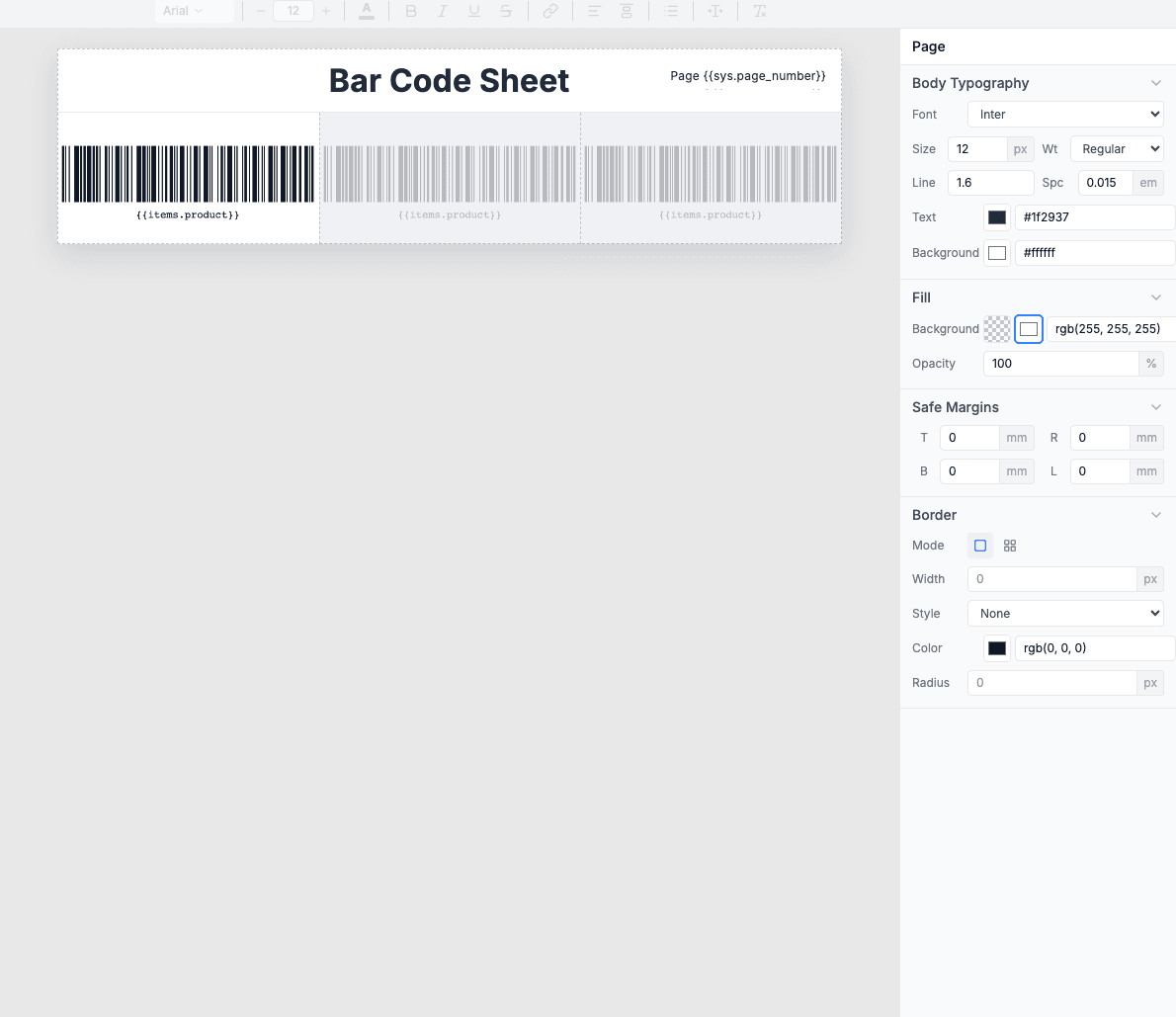
Try it first: Free barcode sheet generator — paste your data and see the output before automating.
1.2 — Required fields
The template expects a JSON payload with an items array. Each item becomes one barcode label.
Tip: The barcode_value is what gets encoded into the barcode. Keep it short and unique — SKUs, product IDs, or serial numbers work well.
1.3 — Barcode types supported
Choose the barcode format that matches your scanning equipment and use case:
| Format | Best for | Characters |
|---|---|---|
| Code 128 | General inventory, shipping | All ASCII characters |
| EAN-13 | Retail products (international) | 13 digits |
| UPC-A | Retail products (North America) | 12 digits |
| Code 39 | Legacy systems, automotive | Alphanumeric + special |
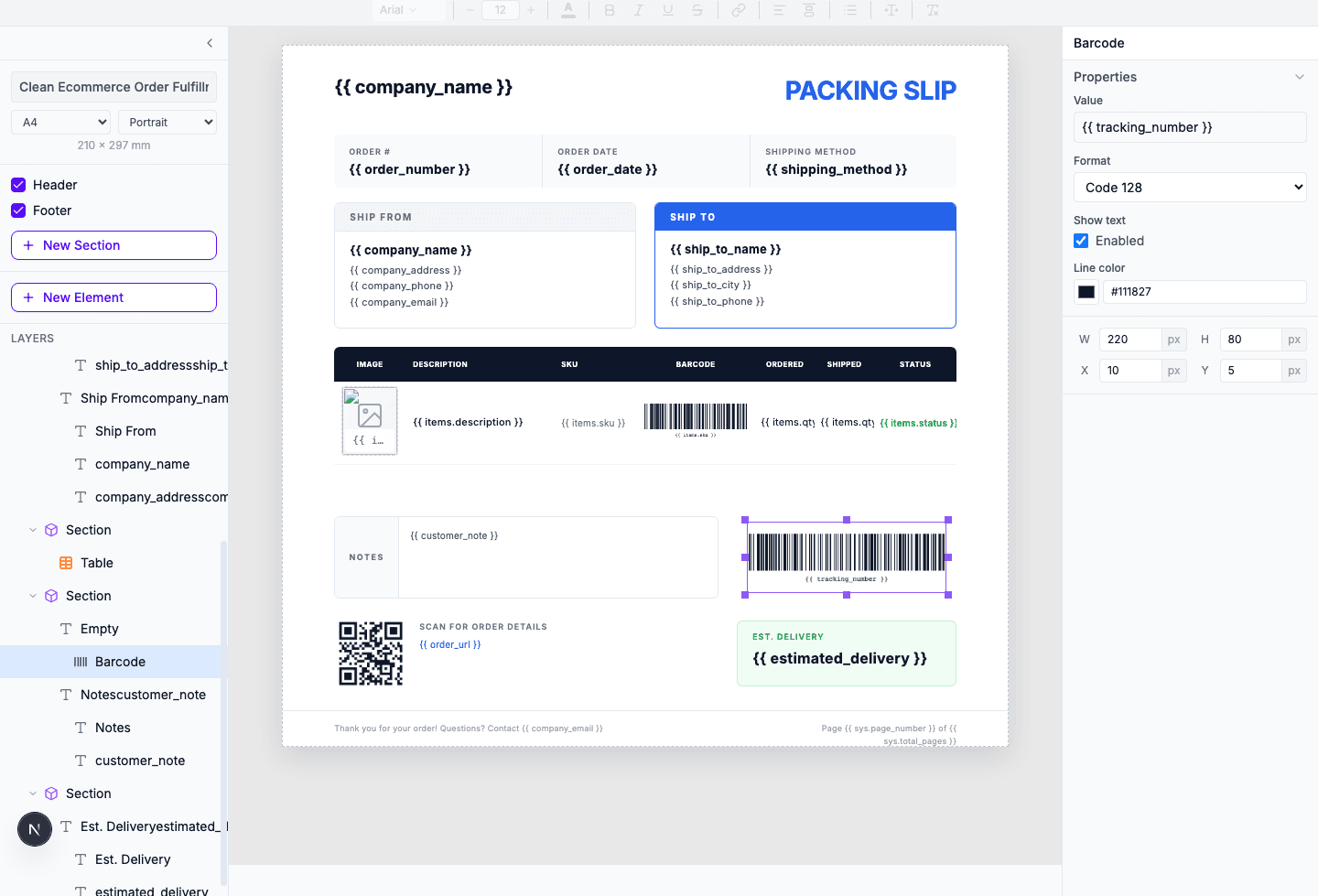
In the template: Use {{barcode:barcode_value}} for Code 128 (default), or specify format like {{barcode:barcode_value:ean13}}.
To change barcode settings, click on any barcode in the template editor. The properties panel shows format, value, and display options:
Prepare your data source
2.1 — Structure your inventory data
Your data source needs columns that map to the template fields. Here's a simple Google Sheets structure:
| SKU | Product Name | Price | Needs Labels |
|---|---|---|---|
| SKU-001-BLK-M | T-Shirt Black Medium | $29.99 | TRUE |
| SKU-002-WHT-L | T-Shirt White Large | $29.99 | TRUE |
| SKU-003-BLU-S | T-Shirt Blue Small | $29.99 | FALSE |
The Needs Labels column is optional but useful — you can filter on it to only generate labels for new products.
2.2 — Common data sources
Make connects to hundreds of apps. Here are the most common for inventory workflows:
Google Sheets
Simple inventory tracking. Trigger: "Watch Rows" to detect new products.
Airtable
Product catalog with rich fields. Trigger: "Watch Records" with filter on status field.
Shopify
E-commerce products. Trigger: "New Product" when items are added to your store.
Webhook
Custom integration. Your ERP, WMS, or custom system sends product data directly.
Build the Make scenario
3.1 — Set up the trigger
I'll use Google Sheets for this example. The same approach works with any data source.
- Go to make.com and create a new scenario
- Add Google Sheets → Watch Rows
- Connect your Google account and select your inventory spreadsheet
- Set to watch for new rows (or use "Search Rows" with a schedule for batch processing)
Tip: For batch processing, use a scheduled trigger (e.g., daily at 8am) combined with a filter on "Needs Labels = TRUE". After generating labels, update the column to FALSE so you don't regenerate them.
3.2 — Use Iterator for bulk processing
To generate labels for multiple products in one sheet, you have two options:
Option A: One sheet per batch
Collect multiple rows with an Aggregator, then send the entire array to TemplateFox. The template generates one PDF with all labels.
Option B: One sheet per product
Use an Iterator to process each product separately. Generates multiple PDFs, one per product.
Option A is usually what you want — 50 products on one printable sheet is more efficient than 50 separate PDFs.
3.3 — Generate the PDF
Add an HTTP module to call the TemplateFox API:
- Add HTTP → Make a request
- URL:
https://api.pdftemplateapi.com/v1/pdf - Method:
POST - Headers:
x-api-key: your_api_keyandContent-Type: application/json - Body: Map your spreadsheet columns to template fields
View example request body
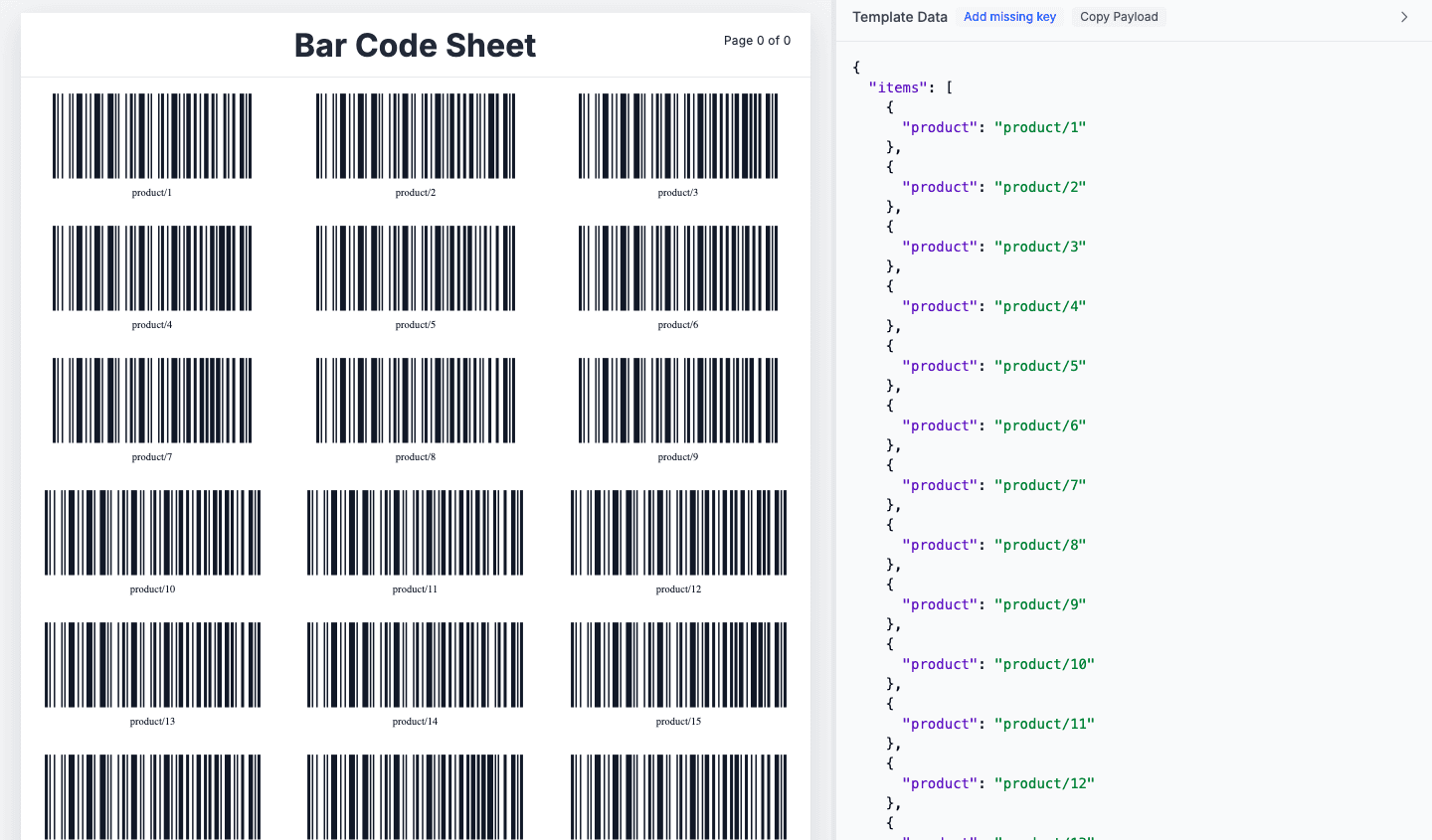
The response includes a pdf_url — use this in the next step to email, print, or save the labels.
API docs: Full API reference · Make integration guide
Common use cases
Warehouse receiving
New shipment arrives, scan the packing list, labels print automatically for all items.
New product onboarding
Add a product to your catalog, labels generate for inventory tagging.
Inventory audits
Generate replacement labels for damaged or missing tags during cycle counts.
Retail price updates
Price change? Generate new labels with updated prices for affected products.