Why automate packing slips?
Manual packing slip creation wastes time and causes errors. Someone copies the order details from your e-commerce platform into a Word doc, updates the line items, prints it, and sticks it in the box. Multiply that by 50+ orders a day and it's a full-time job.
Mistakes creep in too — wrong quantities, missing items, outdated customer addresses. A single wrong packing slip means a return, a reshipping cost, and an unhappy customer.
Make's iteration and routing capabilities make this particularly easy to automate. Orders come in, packing slips generate and print — no manual intervention needed. We'll build the entire workflow in this guide.
Create your packing slip template
1.1 — Choose a template
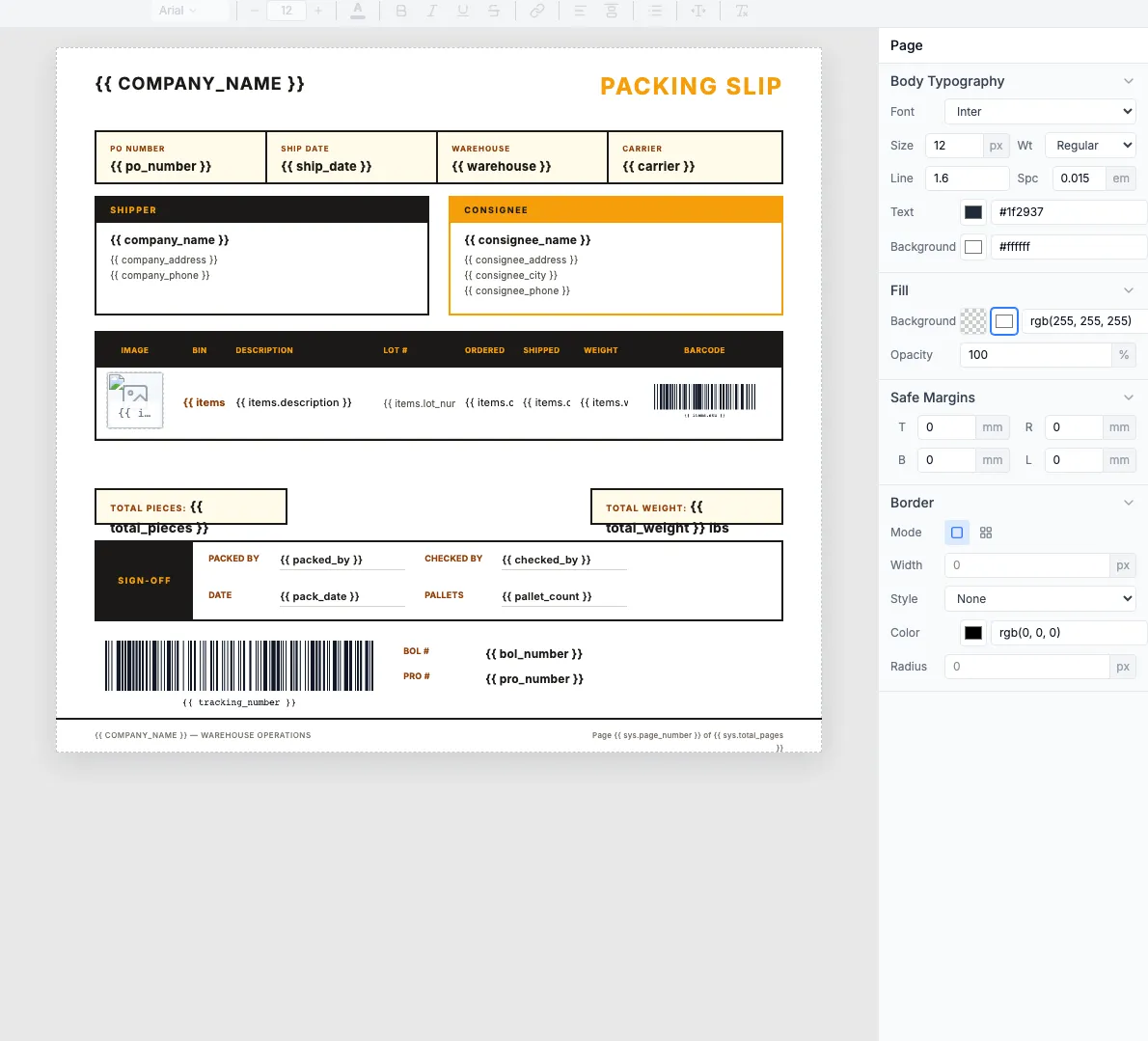
Go to Templates and filter by Packing Slip. Pick one that fits your warehouse workflow. I'll use the Warehouse Wholesale B2B template for this tutorial.
Click Use Template to add it to your dashboard. You can customize fields, logo, and layout in the visual editor.
Try it first: Free packing slip generator — paste your order data and see the output before automating.
1.2 — Understand the structure
A packing slip template has two types of fields: hardcoded values that stay the same across all slips, and dynamic values that change per order.
Hardcoded (set once)
company_namecompany_addresscompany_logoreturn_policy
Dynamic (per order)
order_idorder_datecustomer_nameshipping_addressitems[](name, sku, qty, location)
Hardcoded fields are set directly in the template editor — you only configure them once. Dynamic fields use {{field_name}} placeholders that get replaced with real data from your Make scenario.
1.3 — Line items table
The most important part of a packing slip is the items table. It uses auto-expanding rows — pass an items array and the table grows to fit.
Template fields for each row:
| Field | Description | Example |
|---|---|---|
| items.product_name | Product display name | Wireless Mouse Black |
| items.sku | Stock keeping unit | WM-BLK-001 |
| items.quantity | Number of units to pick | 2 |
| items.bin_location | Warehouse bin for picking | A3-R2-S5 |
Tip: Adding bin_location to your packing slip dramatically speeds up warehouse picking. Staff go straight to the right shelf instead of searching.
1.4 — Test with the Preview tab
Before connecting Make, test your template with sample data. Open the template editor and paste this JSON into the Preview tab:
You should see a rendered packing slip with the three items listed in the table. If something looks off, adjust the template layout before moving to the Make scenario.
Build your Make scenario
2.1 — Set up the trigger
Go to make.com and create a new scenario. Add a trigger module for your e-commerce platform:
Shopify
Add Shopify → Watch Orders. Fires on every new order.
WooCommerce
Add WooCommerce → Watch Orders. Filter by status "processing" to skip draft orders.
BigCommerce
Add BigCommerce → New Order. Includes line items by default.
Airtable / Google Sheets
Add Watch Records or Watch Rows for manual order management workflows.
Screenshot: Make scenario with Shopify trigger module
2.2 — Transform the order data
Your e-commerce platform sends data in its own format. You need to transform it into the structure your template expects. Use Make's built-in data transformer to map fields.
Example mapping from Shopify to TemplateFox:
| Shopify field | Template field |
|---|---|
| order.name | order_id |
| order.created_at | order_date |
| order.shipping_address.name | customer_name |
| order.shipping_address (full) | shipping_address |
| order.line_items[] | items[] |
Tip: For the items array, use Make's map() function to transform each line item. Map line_items[].title to product_name, line_items[].sku to sku, etc.
2.3 — Add the HTTP module
Add an HTTP module to call the TemplateFox API:
- Add HTTP → Make a request
- URL:
https://api.pdftemplateapi.com/v1/pdf - Method:
POST - Headers:
x-api-key: your_api_keyandContent-Type: application/json - Body type: Raw, Content type: JSON
View example request body
Screenshot: HTTP module configuration in Make with headers and JSON body
The response includes a pdf_url — use this in the next step to deliver the packing slip.
API docs: Full API reference · Make integration guide
2.4 — Print or deliver
The HTTP module returns a PDF URL. Now add a final module to deliver the packing slip:
Auto-print
Add Ezeep or PrintNode module. Slip prints at the warehouse printer automatically.
Email to warehouse
Add Email or Gmail module. Attach the PDF and send to your fulfillment team.
Save to Google Drive
Add Google Drive → Upload a File. Organize by date or order number.
Upload to S3
Add AWS S3 → Upload File. Store for archival or integration with your WMS.
Advanced: Conditional routing
This is where Make's visual builder really shines compared to other automation platforms. The Router module lets you split your scenario into multiple paths based on conditions.
3.1 — Route by order type
Use Make's Router module to send different order types to different templates. For example:
Standard orders
Use your default packing slip template with basic item list and shipping info.
Fragile items
Route to a template with handling instructions, fragile warnings, and special packing notes.
Gift orders
Route to a template that omits prices and includes a gift message.
Add a Router module after your trigger, then set up Filter conditions on each path. For example, check if any line item has a "fragile" tag or if the order includes a gift note.
Screenshot: Make Router module with three paths for standard, fragile, and gift orders
Why Router beats Zapier Paths
- • Router supports unlimited paths (Zapier Paths is limited)
- • Each path can have its own chain of modules
- • Paths run in parallel, so there's no speed penalty
- • Fallback path catches anything that doesn't match other conditions
3.2 — Handle multi-box shipments
When an order ships in multiple boxes, each box needs its own packing slip with only the items inside that box. Make's Iterator module handles this perfectly.
Here's the flow:
- Trigger fires on new order with multiple fulfillment groups
- Add an Iterator module that loops through each fulfillment group (box)
- Each iteration calls the HTTP module with only the items for that specific box
- Result: one packing slip per box, each with the correct items listed
Tip: Add a box_number field (e.g., "1 of 3") to your template so warehouse staff know how many boxes to expect per order.
Supported platforms
Make connects to hundreds of apps. Here are the most common for packing slip workflows: