Why automate invoices?
You just got a payment notification. Now you need to create an invoice — open your template, copy the customer details, add line items, double-check the math, export to PDF, attach it to an email. For one order? Fine. For 10 a day? That's your entire morning gone.
Stripe's built-in invoices work, but they look like everyone else's. Same layout, same font, same "powered by Stripe" branding. If you're running a serious business, you probably want something that actually looks like your business.
Here's what we're building: a Make scenario that fires whenever you get paid, generates a branded PDF invoice with all the details, and emails it to your customer. Make is ideal here because its visual builder, iteration modules, and data transformers make it easy to handle bulk invoicing and complex data mapping.
Create your invoice template
1.1 — Choose a template
Start with one of our pre-built invoice templates or create your own:
- Go to Templates
- Filter by Invoice category
- Choose a template that matches your style (minimal, corporate, creative)
- Click Use Template to add it to your dashboard
This tutorial uses the Freelancer Consultant Invoice template. It's clean, supports VAT and IBAN fields, and works well for both freelancers and small businesses.
Other options: European Corporate for enterprise invoicing, Modern with QR Code for instant payments.
Screenshot: Freelancer Consultant Invoice template in the template gallery
1.2 — Understand the template structure
The template uses dynamic fields that get replaced with real data. Some fields you'll hardcode (your company info), others come from Make (client, invoice details).
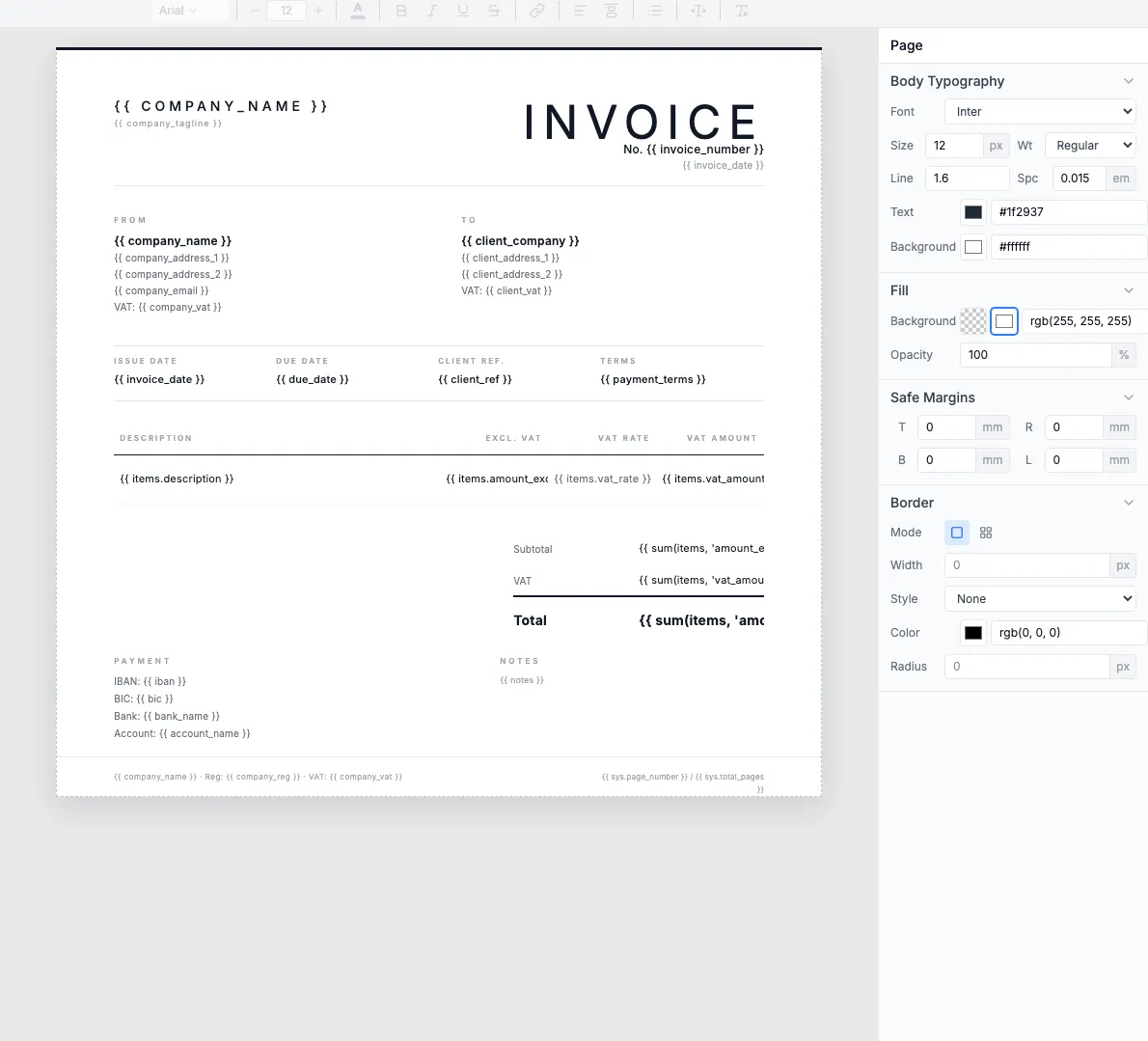
Hardcode once (your company)
company_name— Your business namecompany_address— Your addresscompany_vat— Your VAT numberiban,bic,bank_name— Bank details
Edit these directly in the template — they stay the same for every invoice.
Dynamic from Make (per invoice)
client_company— Customer nameclient_address— Customer addressinvoice_number— Unique invoice IDinvoice_date,due_date— Datesitems[]— Line items array
Map these from your payment platform in the Make scenario.
Auto-expanding line items table
The items table automatically repeats for each product in the items array. Send 2 items, get 2 rows. Send 10 items, get 10 rows.
Automatic totals with expressions
The template calculates subtotal, VAT, and total automatically using sum() expressions. You don't need to calculate these in Make.
Page numbers (for multi-page invoices)
The footer shows page numbers using system variables. If your invoice has many line items and spans multiple pages, pagination is automatic.
Learn more: Expressions · System variables · Tables
1.3 — Test with the Preview tab
The Preview tab lets you test your template with sample data before building the Make scenario. The JSON panel on the right contains your test data, and the rendered invoice appears on the left in real-time.
JSON data maps to template fields
Each key in the JSON (like client_company) fills its matching {{client_company}} placeholder.
Line items array becomes table rows
The objects in the items array generate table rows automatically.
Totals calculate automatically
The sum() expressions add up all values across the items array.
Tip: Use the Copy Payload button to copy the JSON structure. This is the exact format you'll need to send from the Make HTTP module.
View full JSON payload example
Build your Make scenario
The scenario runs automatically. Payment hits Stripe, invoice lands in your customer's inbox. Here's the module flow:
Screenshot: Complete Make scenario overview showing the module flow from trigger to email
2.1 — Set up the trigger
Choose your payment platform and trigger event. Each platform has a native Make module:
Stripe
Module: Watch Events → filter by payment_intent.succeeded
Gumroad
Module: Watch Sales — triggers on every new purchase
LemonSqueezy
Module: Watch Orders or use a Webhook trigger
Paddle
Module: Watch Events → filter by transaction.completed
- Go to make.com and create a new scenario
- Click the + button to add your first module
- Search for your payment platform (e.g., Stripe)
- Select the appropriate trigger event
- Connect your account and run once to pull sample data
Testing with Stripe Test Mode
Connect Make using your test secret key (starts with sk_test_). Then create a test payment in Stripe Dashboard:
- Card:
4242 4242 4242 4242 - Expiry: any future date (e.g.,
10/30) - CVC:
123
Screenshot: Make scenario with Stripe trigger module showing sample payment data
2.2 — Add the HTTP module
Make doesn't have a native TemplateFox module (yet), so you'll use the built-in HTTP "Make a request" module to call the API directly. This is actually more flexible — you get full control over the request body.
- Click + after your trigger module
- Search for HTTP → select Make a request
- URL:
https://api.pdftemplateapi.com/v1/pdf - Method:
POST - Headers: add two rows:
x-api-key: your API key (from the TemplateFox dashboard)Content-Type:application/json
- Body type: Raw
- Content type: JSON (application/json)
- Request content: paste the JSON body (see below)
The request body maps your Stripe data to the template fields. Use Make's variable picker to insert data from the trigger:
Tip: Hardcode your company info (address, IBAN, VAT) directly in the template editor. Only map dynamic data like customer name and amounts from the trigger module. This keeps the HTTP request body simpler.
Stripe amounts: Stripe sends amounts in cents (e.g., 2500 = $25.00). Use Make's built-in math to divide by 100, or use a data transformer module to convert before the HTTP call.
Screenshot: Make HTTP module configuration showing URL, headers, and JSON body with mapped Stripe variables
2.3 — Handle the response
The HTTP module returns a JSON response from the TemplateFox API. The key field is pdf_url — a direct link to the generated invoice PDF.
Make automatically parses the JSON response. In the next module, you can reference pdf_url directly from the HTTP module's output using the variable picker.
Important: Make sure Parse response is enabled in the HTTP module settings (it is by default). This lets subsequent modules access the JSON fields directly.
2.4 — Send via email
Add an email module to automatically send the invoice to your customer:
- Click + after the HTTP module
- Add Gmail, Microsoft 365 Email, or SMTP
- Select "Send an Email"
- To: map to the customer's email from the trigger module
- Subject:
Invoice #{{invoice_number}} from Your Company - Body: write a brief message with payment confirmation
- Attachments: use the
pdf_urlfrom the HTTP module response
That's it. Payment comes in, invoice goes out. Your customers get professional documentation, and you didn't lift a finger. Turn the scenario on and it runs 24/7.
Screenshot: Final generated invoice PDF with all data filled in automatically
Scale with iteration
The basic scenario above handles one invoice per payment. But Make really shines when you need to process invoices in bulk — generating dozens or hundreds at once from a spreadsheet, database, or batch of transactions.
3.1 — Bulk invoicing with the Iterator module
Make's Iterator module splits an array into individual items and processes each one separately. This is perfect for generating invoices from a batch of records — like rows in Google Sheets or records in Airtable.
Here's how to set it up:
- Use Google Sheets → Search Rows as the trigger (filter for rows where "Invoice Sent" = FALSE)
- Add a Flow Control → Iterator module
- Point the Iterator at the array of rows from Google Sheets
- Add the HTTP module (same config as step 2.2) — it runs once per row
- Add the Gmail module to send each invoice
- Add Google Sheets → Update Row to set "Invoice Sent" = TRUE
Rate limits: Make processes Iterator items sequentially, not in parallel. For large batches (100+ invoices), consider scheduling the scenario to run during off-peak hours. The TemplateFox API handles concurrent requests well, but email providers may have sending limits.
Screenshot: Make scenario with Iterator module showing batch invoice processing flow
3.2 — Conditional routing
Make's Router module lets you branch your scenario based on conditions. Use this to send different invoice templates depending on the transaction type, region, or amount.
By region
EU customers get a VAT-compliant template with IBAN details. US customers get a simpler template with USD formatting.
By amount
Orders over $1,000 use a detailed template with extra terms and conditions. Smaller orders use a minimal receipt-style template.
To set up routing:
- Add a Router module after your trigger
- Each route gets a filter — e.g.,
customer.address.country = "US" - Each route has its own HTTP module pointing to a different
template_id - All routes can share the same email module at the end
Pro tip: Combine Router with Iterator for maximum flexibility. For example: fetch all unpaid invoices from Airtable, iterate through them, then route each one to the right template based on the client's country.
Screenshot: Make scenario with Router module showing two branches for EU and US invoice templates
Supported platforms
Any payment platform with a Make module or webhook support works. Here are the most popular: